Summary
Cursor is an AI code editor based on Visual Studio Code. You can dictate prompts with Superwhisper. Install both apps, focus a text field in Cursor, and use Superwhisper’s shortcut or push-to-talk. This guide also covers code review before you ship AI-generated changes.
What is Cursor?
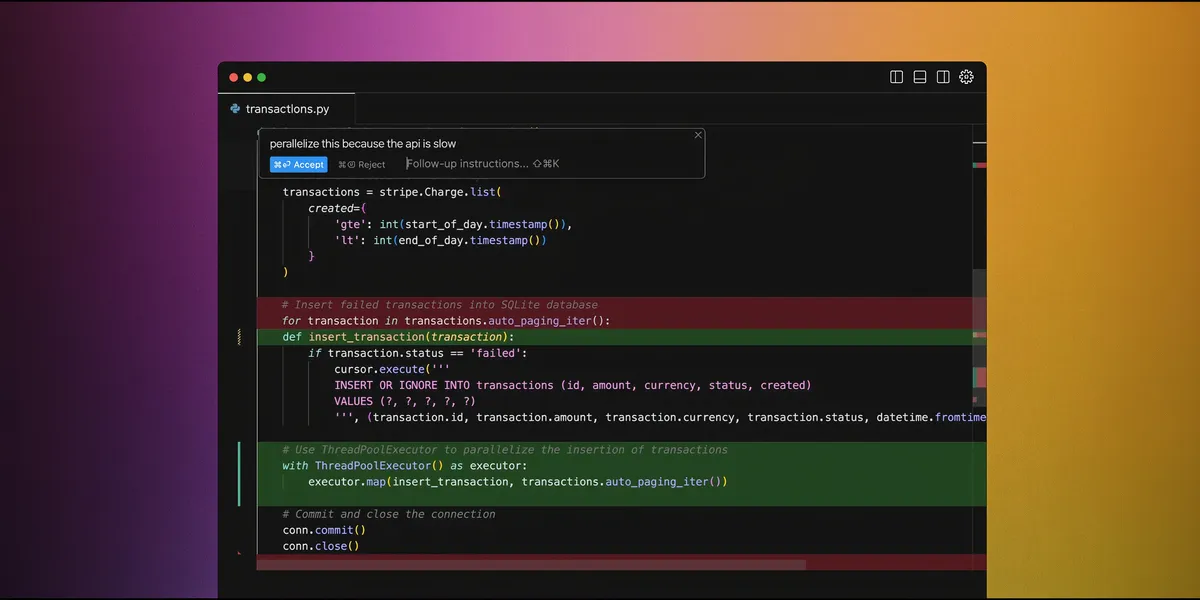
Cursor is Anysphere’s AI code editor, based on Visual Studio Code, another code editor. Cursor helps with project code, plans, bugs, and reviews. Check its docs for current features and plan terms. Cursor updates often, so check its documentation for current tools and plan terms.
Review AI-generated code before shipping
AI can draft or edit code. Review each change and run your project’s required checks. A Stanford study tested 47 participants. Those who used an AI code assistant wrote code with more security weaknesses. They were also more likely to think their code was secure. The study covered one task, not every project. Use it as a reason to review AI output. See the study.
Set Up Cursor and Superwhisper
What is Superwhisper?
Superwhisper is dictation software. It types speech into the field where you are writing. Its current site lists Cursor as a supported workflow. You can start dictation with a keyboard shortcut or by holding a button. Some models run on your device; check the official setup guide for current options.
Dictate a prompt into Cursor
To dictate a prompt into Cursor:
- Install Cursor and Superwhisper from their official sites.
- Open a Cursor chat or click where you want the text to appear.
- Press Superwhisper’s configured shortcut or hold its speak button. Say your request, then check the transcript.
- Read the transcription, correct any errors, and send it to Cursor.
The shortcut depends on your Superwhisper settings and device. Superwhisper says it works across your device, so you do not need to install an add-on for Cursor.
Why pair Cursor with dictation
Dictation may help when speaking is faster than typing or when you need to keep your hands free. The amount of time saved depends on how much you need to correct the typed transcript.
Personal Experience with Cursor AI
So far, so good. I’ve used Cursor since its early launch and appreciate how far it has come. The workflow felt awkward at first. It felt natural within a day or two. It would help if Cursor remembered the last mode when I opened a new chat. I’d also avoid switching back to Agent mode by default. Labeling each mode with “Mode” could also clarify its function. While the dark mode feels a bit too dark, it’s not a major issue.
As a software engineer, I can spend too much time weighing options. That can slow me down. Cursor has helped me solve some problems faster, even when I did not understand the cause. I used Stack Overflow before. Now I can ask Cursor inside the editor. This fits my commitment to good work.
Cursor’s interface still has friction for me. I pair it with Superwhisper to dictate prompts instead of retyping them. I’ve used Cursor on client projects and personal apps since its launch. Several mobile apps are still in progress. See the related build a business from scratch using the best AI tools workflow. When I wrote this section, I was using Cursor v0.46.
A cautious Cursor workflow
- Start with a small task.
- State the goal and provide relevant files or context.
- Review the full change and run the project checks.
- Record which parts of the draft you kept or changed.
- Check the vendor docs when you need current instructions.
Plan and review
- Define what done means before you ask for a change.
- Provide relevant files and project documentation.
- Check the result against your project’s coding standards.
Conclusion
Superwhisper can put dictated text into Cursor without a dedicated editor plugin. Use Superwhisper’s shortcut to draft a prompt in Cursor. Check the transcript, then review every AI-generated change before merging it. You can try Cursor here.
Main Ideas
- Cursor is a standalone AI code editor based on VS Code.
- Superwhisper can dictate into a focused Cursor field. Use a systemwide shortcut or push-to-talk.
- Check the transcript, inspect code changes, and run project checks before shipping.
FAQ
How do I dictate text into Cursor with Superwhisper?
Install Cursor and Superwhisper. Click a text field in Cursor. Press Superwhisper’s shortcut or speak button to start dictation. Check the transcript before sending it. The shortcut depends on your device and settings.
Is Cursor a separate code editor?
Yes. Cursor is an AI code editor based on Visual Studio Code. It is a separate app, not an add-on that runs inside VS Code.
What is Cursor AI?
Cursor is Anysphere’s separate AI code editor. Cursor helps developers explore project code, plan features, fix bugs, and review changes.
Disclosure
The Cursor links in this article are referral links. If you sign up through them, we may receive a benefit at no extra cost to you. This never changes our advice: try the free tier first and upgrade only if it fits your workflow.