Summary
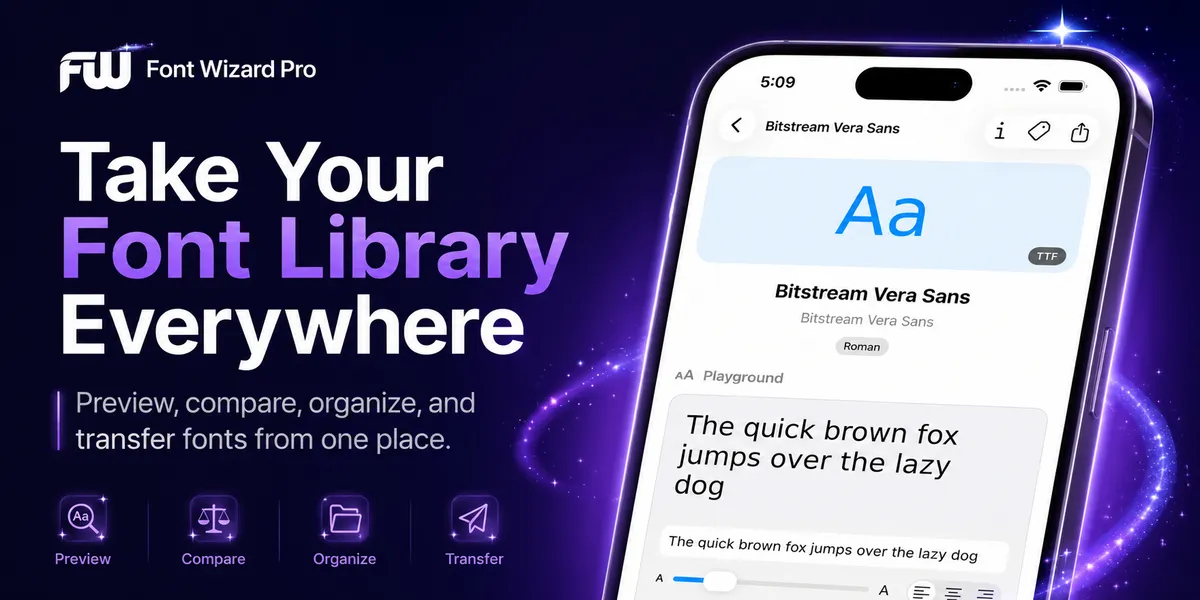
Font Wizard Pro helps you manage font files on iPhone and iPad. You can download or import fonts, preview and compare them, sort them by project, and send them to a computer. Whether you can install a font depends on your device and apps. Check its license before using it for business.
What Is Font Wizard Pro?
Font files often end up in Downloads, email, or project folders. When you cannot find or preview one, choosing a font takes longer. Font Wizard Pro keeps font tasks in one app. Use it to browse and import files. You can also preview, compare, tag, group, export, and transfer fonts.
Download Font Wizard Pro on the App Store to manage your fonts on iPhone or iPad.
Font file types
It works with OTF (OpenType) and TTF (TrueType) font files.
Core tasks in one app
You can use it to:
- Browse, download, and import font files
- Preview and compare typefaces with sample text
- Tag and search fonts or group them by project
- Install or activate compatible fonts where supported
- Export as a ZIP or transfer files to a Mac or PC over local Wi-Fi
Install, activate, and transfer fonts
Some font files and devices support extra install options. Font Wizard Pro can help you manage those options.
Some font apps install fonts through a configuration profile. The profile adds the font to your device. Apps that support custom fonts can then use it.
This does not change the full system font on your device. It helps supported apps see and use the installed font.
Font Wizard Pro manages the files. Your apps decide where installed fonts appear. The app includes a font family you can redistribute for testing. You can also add your own files.
Why Font Work Gets Messy
Fonts arrive from too many places
Font work often starts in many places.
You may find one font on a website. A client may send another by email. A brand font may live in a cloud folder. A test font may sit in Downloads. An old project may hold the one file you need today.
That may work when you only have a few fonts.
Why the mess grows with every project
But the mess grows fast.
Soon, you do not know which fonts belong to which project. You cannot tell which file is the right version. You may remember how a font looked but forget its name.
That is when font work turns into file hunting.
And file hunting is not creative work.
View this post by @stalinkay on X
From Font Chaos to Font Control
Give every font a clear home
Font Wizard Pro gives every typeface a clear place to live.
You can import fonts. You can preview them. You can tag them. You can group them by project. You can compare them with real words. You can export them when you need them on another device.
Follow a simple font workflow
Use a short workflow:
- Import the font.
- Preview it with your own text.
- Compare it with alternatives.
- Tag it or add it to a project set.
- Export or transfer it when needed.
This makes the font easier to find the next time you need it.
Preview the Font Before You Use It
File names hide how a font feels
A file name does not show how a font feels.
It does not show if the font is bold, soft, sharp, calm, playful, clean, or hard to read.
A live preview does.
Preview before the font reaches the final file
Preview a typeface with a headline, label, or sentence before you use it. This makes it easier to judge than a file name. Check whether the font stays readable and fits the design.
Compare Fonts With Your Own Words
Choose with your own text
Choosing a font from a long list is hard.
Choosing a font with your own text is easier.
Font Wizard Pro lets you compare fonts with sample text that fits your work.
Try a brand name, headline, button label, product title, or another phrase from the project.
Why words change the look
This matters because fonts change when words change.
A font may look good with one word and poor with another. It may look strong in a title but weak in a sentence. It may work for a logo but fail in a label.
Font Wizard Pro helps you catch that early.
Build Font Sets for Real Projects
Group fonts by the work they serve
Fonts serve projects.
They belong to work.
A logo may need one set. A website may need another. A client brand may need another. A campaign may need another. A video project may need another.
Reuse sets instead of rebuilding them
Font Wizard Pro helps you group fonts by project, so you do not have to rebuild the same set each time.
You can keep a logo set apart from a website set. You can keep a brand kit apart from a campaign. You can keep client fonts away from personal fonts. The World Cup font guide shows a reusable match-day font system.
This makes your library easier to use.
It also helps you avoid mistakes.
Use Tags to Find Fonts Faster
Where folders fall short
Folders can help, but they have limits.
A font can fit more than one group. It may be a display font, a logo font, a client font, and a future campaign font.
If you only use folders, you may copy the same font into many places. That creates more clutter.
Tag once, find from many angles
Tags give you more control.
With Font Wizard Pro, you can tag fonts by:
- Client
- Brand
- Style
- Mood
- Project
- Platform
- Use case
- Font type
You can tag a font once and find it later from many angles.
You can tag by client, brand, style, mood, project, platform, or use case, then search across those groups.
Browse, Download, and Import Fonts
Bring fonts in from anywhere
Font Wizard Pro includes tools to help you bring fonts into your library.
Browse font sites and download files in Font Wizard Pro. You can also add a font URL or import files from your own sources.
Keep the download queue under control
You can manage your download queue. Search it to find a font. Retry a failed item or resume a download. Remove duplicates before they add clutter.
This helps you keep font work in one flow.
Find the font. Save it. Preview it. Organize it. Use it.
Install Fonts With a Configuration Profile
What a configuration profile does
Some font apps use a configuration profile to install a font. Availability depends on the device, system version, font, and app. Apple’s current guide explains how to install and manage fonts on iPhone. For more detail, see our iPhone and iPad font installation guide.
Installed fonts are available only in apps that support them. Apple lists installed fonts in Settings under General, then Fonts.
View this post by @stalinkay on Threads
Prepare your files first
Prepare your font files in Font Wizard Pro. Then install, activate, export, or transfer them when you need to.
Before you install any font, check the license. Only install fonts you have the right to use.
Export and Transfer Fonts to Mac or PC
Bridge mobile and desktop
Sometimes you find or sort fonts on your iPhone or iPad, but the real work happens on your computer.
Font Wizard Pro helps bridge that gap.
You can export fonts as a ZIP or transfer them to a nearby Mac or PC over local Wi-Fi. For instructions, see how to transfer fonts from iPhone or iPad to Mac.
When to export or transfer
This is useful for backing up a library or moving a project set to your desktop.
Who Is Font Wizard Pro For?
Made for people who use fonts at work
Font Wizard Pro is for people who use fonts at work.
Font Wizard Pro helps anyone who manages fonts across projects or devices.
No font expertise required
You do not need to be a font expert.
You need a way to find and manage your fonts.
What If You Tried Font Wizard Pro Years Ago?
We have updated the app since earlier versions. Check the current App Store listing for its latest features and compatibility details.
What About Font Licenses?
Font Wizard Pro helps you manage font files.
It does not give you the right to use every font for every purpose.
Each font can have its own license. Some fonts are free for personal use. Some are free for commercial use. Some need a paid license. Some cannot be shared.
Check the license before using a font in client work or business projects. This includes ads, apps, websites, products, and print.
Use fonts you have the right to copy, install, share, or use.
That protects you.
It also respects the people who make fonts.
Keep your font files ready for work
Font Wizard Pro helps you organize and preview font files on iPhone and iPad. Check the App Store listing for current device support. Check each font’s license before client or business use.
Download Font Wizard Pro on the App Store to keep your font files together on iPhone or iPad.
Use and Trademark Notes
Font Wizard Pro works with font files you import or download from sources you choose.
Only use fonts you have the right to copy, install, share, or use.
Compatibility may vary by font file, device, system version, and transfer setup.
Font installation depends on your device and system version. Your app and font file also affect support.
A configuration profile can make a font available to apps that support it. It cannot replace the full iPhone or iPad system font.
iPhone, iPad, iPod touch, Mac, and App Store are trademarks of Apple Inc., registered in the U.S. and other regions.
FAQ
How do I download fonts on iPhone or iPad?
Browse font sites or download font files in Font Wizard Pro. You can also add a font URL or import your own files. Check the license and device support before installation.
How do I use a downloaded font?
Import or download the font in the app. Use the install or activation option when your device and apps support it. Check Settings > General > Fonts. Installed fonts work only in apps that support them.
How do I add a font to iPad?
Open the font file in a compatible font app and follow its install or activation steps. Availability depends on the font, iPadOS version, and app. Then check Settings > General > Fonts. Installed fonts work only in apps that support them.
Related reading
- How to Install Custom Fonts on iPhone and iPad
- World Cup Font Guide: How to Create Match-Day Posters, Watch Party Flyers, and Social Graphics Without Copying FIFA’s Brand
- How to Transfer Fonts from iPhone or iPad to Mac
- AI Headshots, Product Photos, and Fake Images: The Future of Photography Is Here